Every button, feature, and function in SweepAdmin is documented in detail in the User Manual. If you're looking for step-by-step guidance, tap PDF Guide to read it in your browser or download it.
Getting Started
Signing in, account activation, and setting your username
1
Sign In with Google
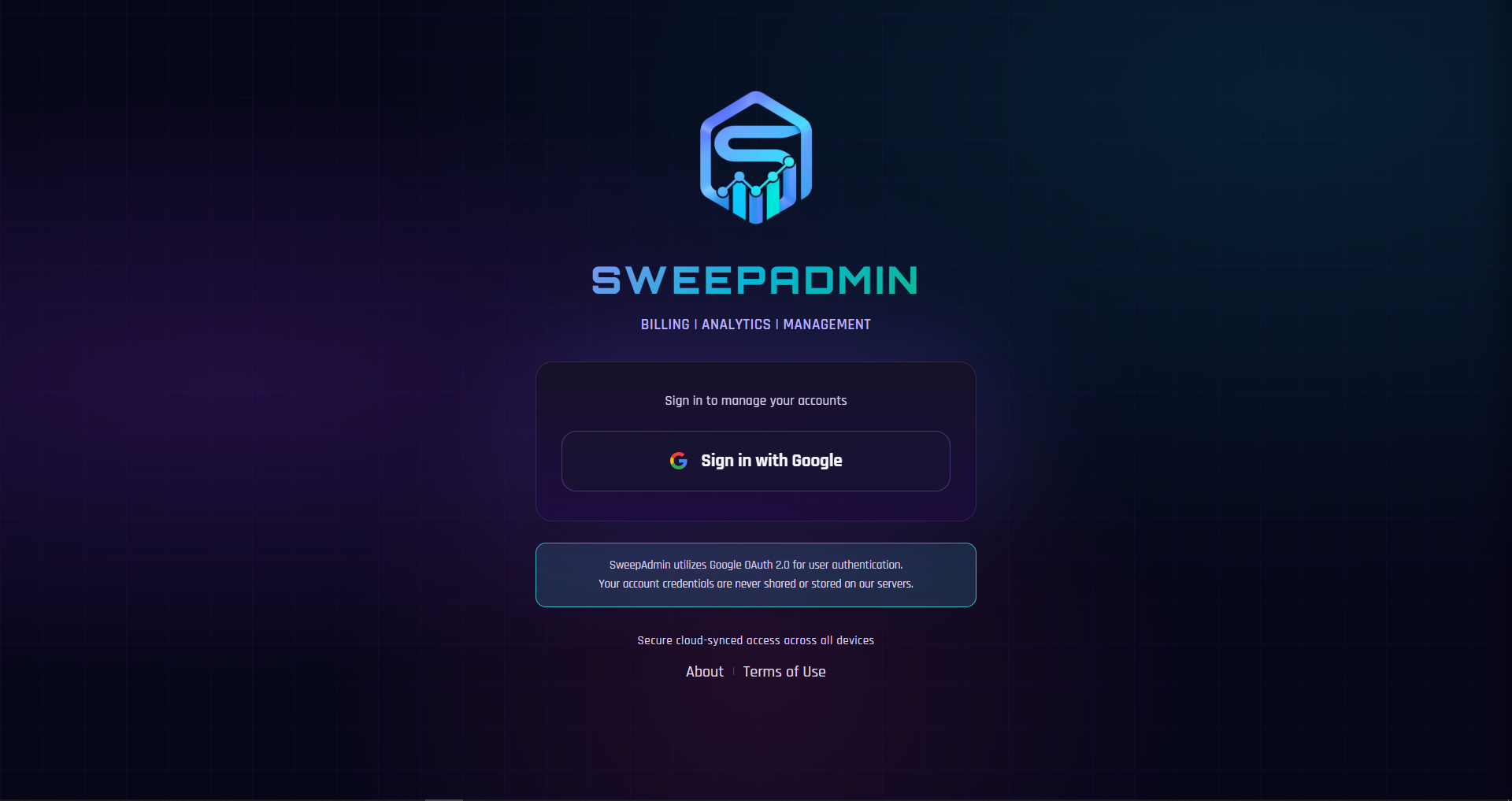
SweepAdmin uses Google Sign-In for authentication. Tap Sign in with Google on the login screen and select your Google account. No separate password is required.
SweepAdmin utilizes Google OAuth 2.0 for user authentication. Your account credentials are never shared or stored on our servers.
2
Account Activation
After signing in for the first time, new accounts are placed in a pending activation state. You will be shown a page with clear steps on what to do next, along with contact information to reach us directly. Follow the steps provided on that page to get your account activated. Once activated, access is granted based on your subscription expiry date. If your subscription is close to expiring (3 days or fewer), you will see a warning prompt. After expiry, access is blocked until renewed.
3
Set Your Username
Owner accounts can set a unique SweepAdmin username: a short, globally reserved handle for your account. Open the hamburger menu, find your profile at the top, and tap the edit icon next to your username. Usernames are unique across all SweepAdmin accounts. Cashier accounts do not have this feature.
Companies
Each company is an independent billing client with its own settings
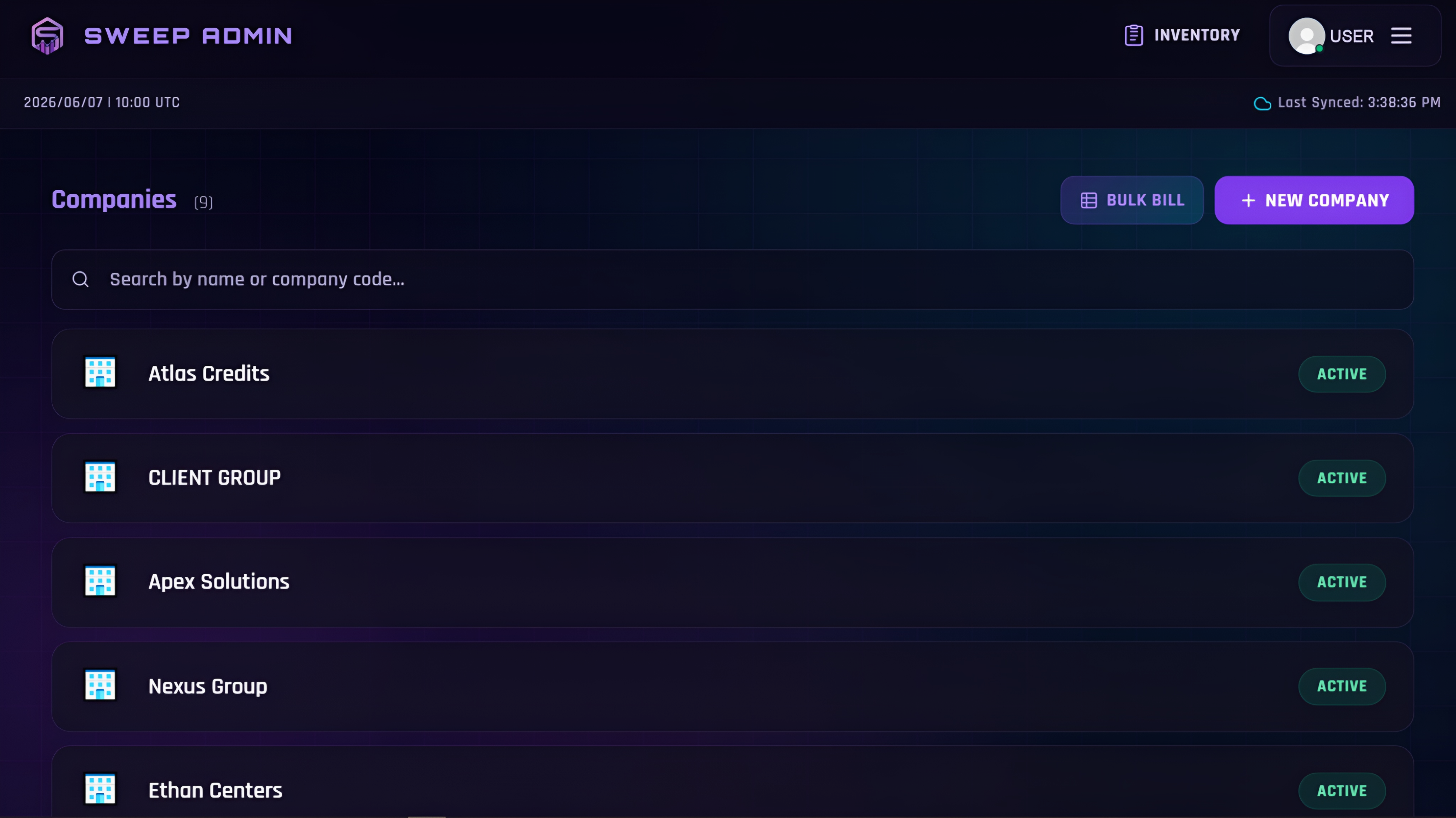
Companies are the core unit of SweepAdmin. Each company you add represents a billing client you manage, bill, and track separately. When a company is created it receives a unique auto-generated Company Code (e.g. A001, AB12) used across invoices, reference numbers, and bill history search.
Every company is fully isolated: its games, usernames, billing history, analytics, and settings are all separate from every other company you manage.
Assigned Games & Rates
Assign games to each company with individual cost and sell rates. Each game runs in Points to Dollar or Dollar to Points billing mode. Profit and loss are calculated by comparing the cost rate against the sell rate for each game per company.
Usernames & Account Levels
Add player or account usernames to each company, each tagged with their position in the account hierarchy: Agent, Supermaster, Master, Distributor, Subdistributor, Store, or Player.
Extra Fee & Bonus Rate
Set a company-level extra fee percentage added on top of every bill. Set a custom rate for bonuses or discounts applied at billing time, both configurable per company individually.
Per-Company Analytics
Each company has its own analytics dashboard with summary cards, trend charts, bar charts, and pie charts scoped entirely to that company's data.
Full Bill History
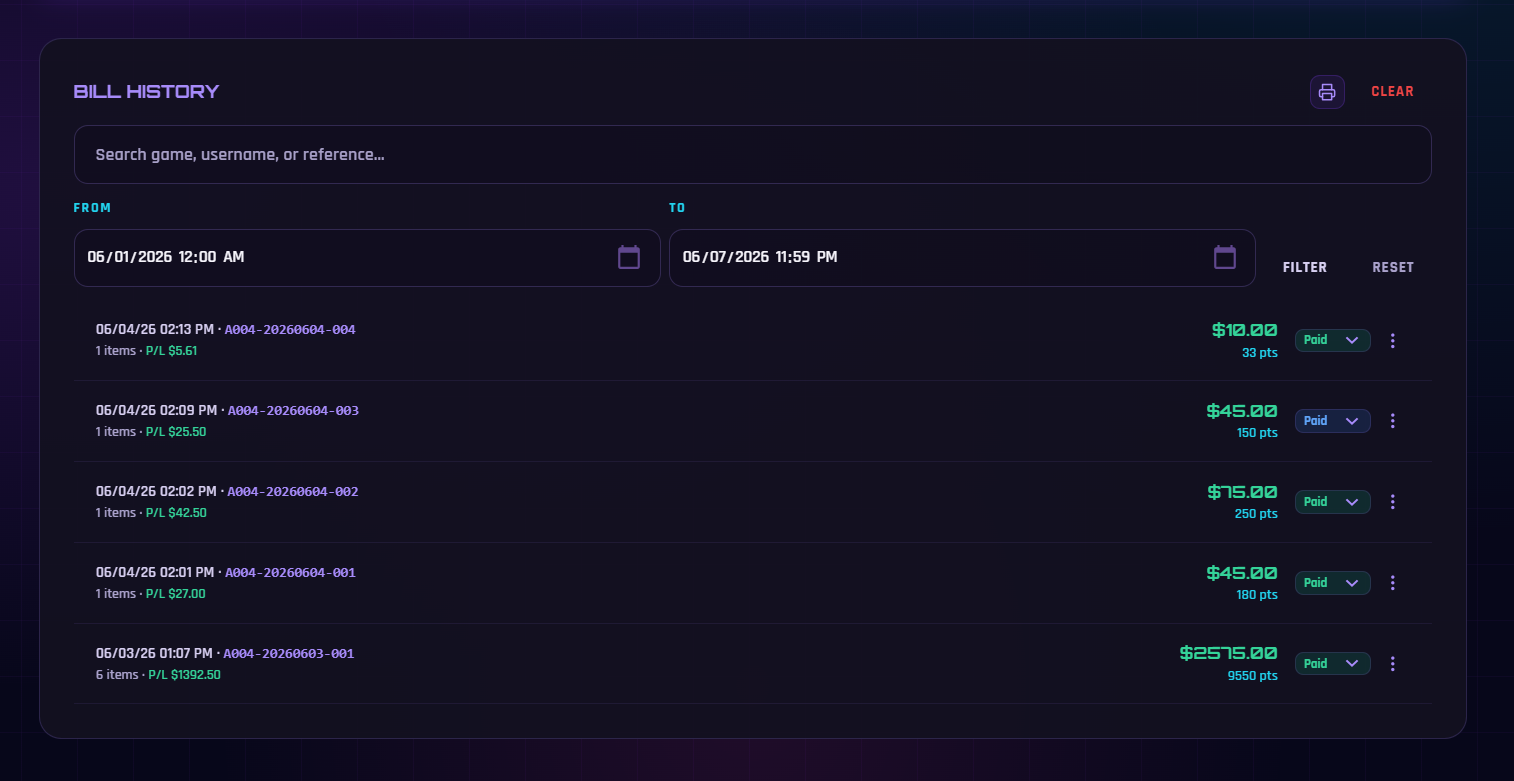
Every bill ever recorded for a company is stored and searchable by game name, username, date, or reference number, indefinitely.
Individual Settings
Each company has its own settings: company code, active or inactive status, and credit balance tracking for overpayments that roll over to future bills.
Billing Panel & Bill History
Instant bill calculation, payment tracking, and reference numbers
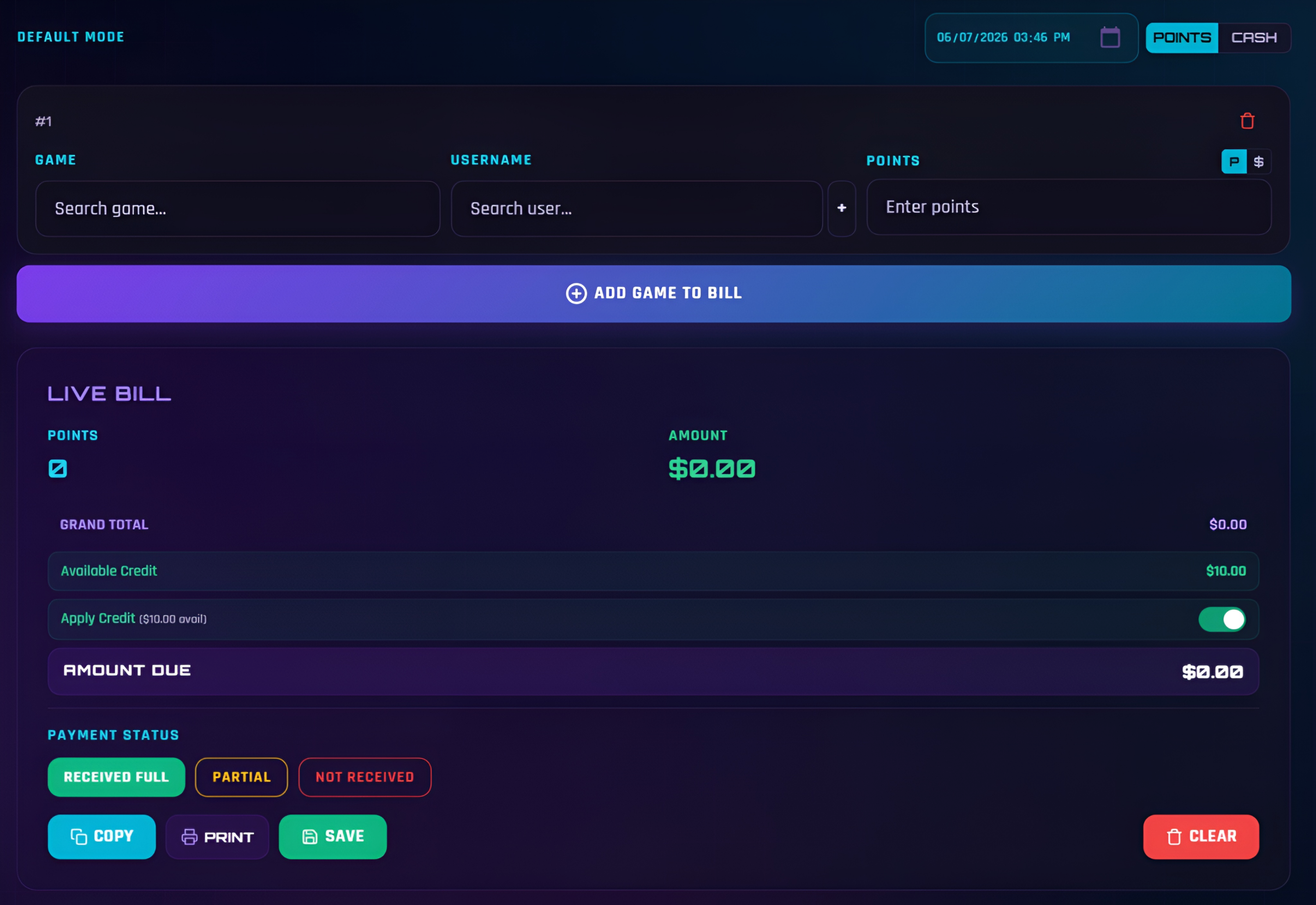
Inside each company is the Billing Panel, a live bill calculator. Add line items by selecting a game, entering the username, and typing the value. The amount calculates automatically the moment you enter it. Two billing modes are available per line item: Points to Dollar (enter points, get the dollar amount) or Dollar to Points (enter a dollar value, get points). You can mix modes within a single bill.
Profit and loss on every bill are calculated by comparing the cost rate set for the game against the sell rate applied to that company. The difference between what you pay to load and what you charge the company is your profit per point block.
When done, set the payment status (Received, Partial, or Pending), choose a payment method from your Cash Flow setup, and record the bill. A reference number is generated automatically and the bill is saved to the cloud. If a payment method is selected and the status is received or partial, the amount posts automatically to that method's Cash Flow balance.
Payment Methods
Payment method options are pulled from your Cash Flow setup. If no methods are configured, the payment method dropdown does not appear in the billing panel.
Extra Fee & Credit
A company-level extra fee is automatically added on top of the subtotal. If the company holds a credit balance from prior overpayments, it can be applied to reduce the amount due.
Custom Date & Time
Bills default to the current date and time but you can set any date for a bill. This is useful for recording bills for a different billing period or correcting past entries.
Print Invoice
Print or save a PDF invoice directly from a live bill or any bill in history. The invoice includes your branding, all line items, a summary, and balance due.
How a Bill is Calculated
Each line item is calculated the moment you type the value. The system multiplies the points entered by the sell rate configured for that game on that company. For multi-line bills, each line is computed separately and summed into the final total.
POINTS TO DOLLAR: Points × Sell Rate = Bill Amount DOLLAR TO POINTS: Dollar Amount ÷ Sell Rate = Points MULTI-LINE TOTAL: Σ ( Pointsᵢ × Rateᵢ ) for each line i PROFIT PER LINE: ( Sell Rate − Cost Rate ) × Points
Past bills always retain the exact rates they were generated with. Updating a game's rate only affects new bills going forward, so historical records stay accurate.
Reference Number Format
Every recorded bill is assigned a unique reference number:
FORMAT: COMPANYCODE-YYYYMMDD-SEQ EXAMPLE: A001-20250601-003 MEANING: Company A001 · June 1 2025 · 3rd bill that day
Your client can read this from their printed invoice under Ref. No#. Paste the full reference number into the bill history search bar to pull up that exact bill instantly. You can also search by just the company code to see all bills for that client.
Master Inventory
Global stock tracking with ordered points and full history
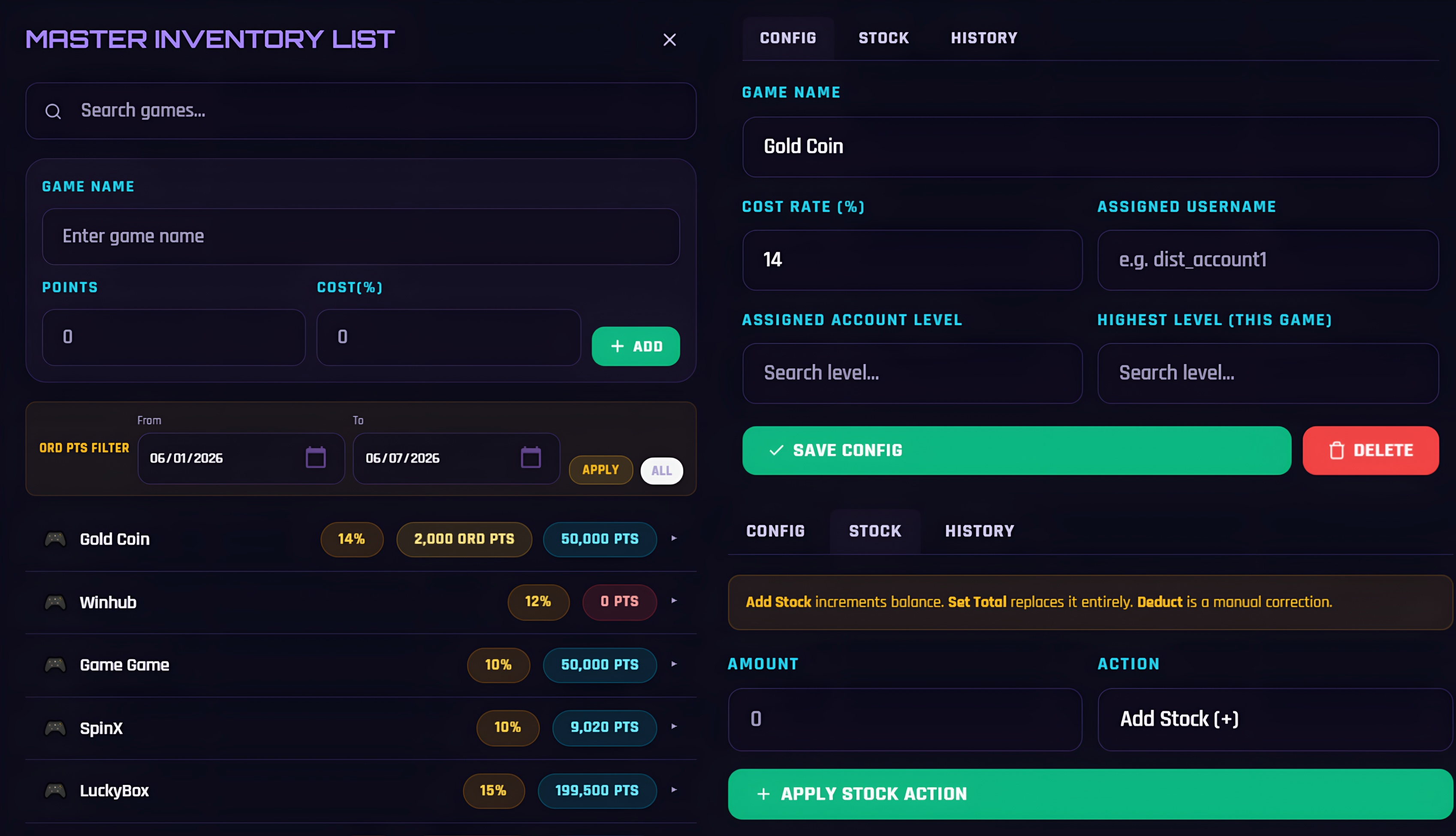
The Master Inventory is a global stock registry separate from the games assigned to individual companies. It tracks how much stock you hold across your accounts and how it is consumed through billing. Each master game entry tracks Total Points (your full stock), Ordered Points (stock ordered from a higher account level not yet received directly), and Remaining Points (total minus what has been billed or redeemed). All adjustments are stored permanently with a full history log.
Account Hierarchy & Ordered Points
SweepAdmin supports a full account level hierarchy: Agent > Supermaster > Master > Distributor > Subdistributor > Store > Player. When you set the highest account level you hold, the system understands that you cannot directly load stock from your own level or above. You must order it from an account higher up the chain. These are tracked as Ordered Points, representing stock in transit or expected. Once received, you adjust your stock and inventory updates accordingly.
Add Stock
Add incoming points to a game's total stock. The new quantity reflects immediately in Remaining Points and is saved to the stock history log.
Replace Stock
Fully reset a game's stock to a new value. Useful when reconciling actual account balances against what the system shows.
Subtract Stock
Manually deduct points from stock, for example when reloading a sub-account directly or correcting a discrepancy.
Stock History
Every add, replace, and subtract is logged with date, quantity, and operation type, and stored permanently in the cloud.
Authenticator Codes
Every game account's 2FA sign-in code in one secure place
Many game platforms protect each account with two-factor authentication (2FA): when you sign in, they ask for a 6-digit code from an authenticator app. Authenticator Codes keeps those codes inside SweepAdmin, so you and the cashiers you choose can sign in to any game account without passing a phone around.
Each authenticator belongs to one game username. A game can have as many usernames as you need, and every username has its own key and its own code, completely independent of the others. The codes are the same standard codes that apps like Google Authenticator produce, so they work wherever the game asks for an authenticator code.
Where to find it
Open the ☰ menu and tap Authenticator Codes. It opens a dedicated page with a search bar and one card per game account. Cashiers only see this menu item if the owner has turned on their Authenticator Codes permission.
How to add an authenticator
Only the owner can add, replace, or remove authenticators. Before you start, open the game platform's 2FA or security settings and have its QR code or setup key ready.
1
Tap Add Authenticator
On a computer, use the + Add Authenticator button at the top of the page. On a phone, tap the round + button in the bottom-right corner.
2
Choose the game
Click the Game field and start typing. It searches your Master Inventory games as you type, so “cash” finds Cash Machine, Cash Carnival, and so on. Only games in your Master Inventory are listed; add the game there first if it is missing.
3
Choose the username
The game's assigned username from Master Inventory is offered automatically. If the authenticator is for a different account, tap + Add Custom Username and type it. Custom usernames are saved only for Authenticator Codes and do not change your inventory.
4
Set the account level
Pick the level (Agent, Supermaster, Master, Distributor, Subdistributor, or Store). For a Master Inventory username it is filled in from your inventory, and you can change it.
5
Add the game's QR code or setup key
Choose one of these:
Use Camera: point your camera at the QR code on the game's screen. Your browser asks for camera permission the first time.
Upload QR Image: pick a screenshot or photo of the QR code.
Paste the link: paste the otpauth:// link if the game shows one.
Enter Setup Key: type the text key the game gives you (letters A to Z and digits 2 to 7; spaces are fine). Leave Advanced alone unless the game tells you to use a different algorithm, 8 digits, or a 60-second period.
6
Confirm the code
SweepAdmin shows the current code for that key with a countdown ring. Type it in and tap Verify & Save. It is saved only if the code matches, so a mistyped key is caught right away. If the game also asks you to confirm a code to finish its 2FA setup, use the code shown on the card.
Tap a card to copy
Tap or click anywhere on a card to copy its current code; a green Copied check confirms it. Only the 6 digits are copied, never the key. On a computer, press Enter in the search box to copy the first match.
Always the current code
Codes change every 30 seconds (or the period the game uses). The ring beside each code shows the seconds left and turns red in the last 5 seconds. The next code appears on its own; you never need to refresh, and after your computer sleeps the page fetches fresh codes before showing any.
Search and reorder
Search by game or username. To arrange the cards, click Reorder on a computer, or long-press any card on a phone. Cards wiggle; drag them into place and tap Done. The order is saved for you on that device and never changes any game data.
Edit, replace, or remove
The ••• button on a card (owner only) lets you edit the username or level, Replace key if the game issued a new QR code, or Remove the authenticator. Other accounts are never affected. If an Action PIN is set, replacing or removing asks for it first.
Cashier access
Turn on Authenticator Codes in a cashier's permissions to let them see and copy codes. They cannot add, edit, or remove authenticators, and they never see keys. Turn it off and their access ends within one code period, even if the page is open.
Help on the page
Tap the i button next to the page title for a quick guide to copying, the countdown, reordering, and who can see what.
How your keys are kept secure
Encrypted at rest. Each setup key is stored encrypted in a secure vault on the server, separate from your other data.
Never shown again. After setup, a key is never sent back to any browser, not even yours. The server works out each 6-digit code and sends only the code.
Nothing on your device. Keys are never saved on your phone or computer. Codes are not kept either; they are fetched fresh while the page is open.
Access is checked on the server. Every request is checked against the owner's permissions, so hiding the menu item is not the only protection. A cashier without permission cannot get codes or keys even by trying to call the server directly.
Every change is recorded. Adding, replacing, editing, and removing authenticators appear in the Data Edit Log with who did it. Keys and codes are never written to the log.
Code not accepted by the game? The codes use the server's clock, so your device's time does not matter. If a code keeps failing, the key was probably entered incorrectly: open the card's ••• menu, choose Replace key, and scan the game's QR code again. If the game shows a new QR code after a reset, replace the key the same way.
Cash Flow Management
Payment method wallets, expenses, and shareholder profit distribution
Cash Flow Management has four tabs: Cash Flow, Payments, Expenses, and Shareholders. Together they give you a complete picture of money coming in, money going out, and how profit is distributed.
Cash Flow Tab
The Cash Flow tab is where you manage your payment method balances. Each payment method you set up (for example: Cash, Bank Transfer, Mobile Money, or any label you choose) appears as a card showing its all-time running balance. Think of each card as a wallet that SweepAdmin tracks automatically.
Clicking a payment method card opens a full detail view of every transaction logged against it (incoming bill payments, manual adjustments, and transfers), all filterable by date range. Below the cards is the All Transactions list showing every transaction across all methods in one place.
Each payment method card has four action buttons:
Add: manually post incoming funds (e.g. a cash deposit received outside of a bill)
Adjust: manually correct the balance up or down to resolve a discrepancy
Deduct: remove funds from the balance (e.g. withdrawal or payout)
Transfer: move funds from one payment method to another with an optional conversion rate if currencies or denominations differ
All manual adjustments and transfers are saved with a note and timestamp, visible in the transaction history of each method.
How billing connects to Cash Flow: When you record a bill and select a payment method with status Received or Partial, that payment amount is automatically posted to the corresponding payment method's balance. The Cash Flow balance updates the moment the bill is saved, with no manual entry needed.
Payments Tab
Shows all incoming payments recorded from billing, both full and partial. Each entry links back to its original bill, showing company name, reference number, date, amount received, and payment method used. This gives you a clean incoming-cash view separate from manual adjustments.
Expenses Tab
Add operational expenses manually: rent, utilities, internet, supplies, or any other overhead. Give each expense a name, amount, and date. If cashier accounts are set up with salary rates and shift records, salary expenses are calculated automatically based on hours worked and salary type. These appear as individual salary line items inside the expenses view with no manual entry needed. Total operating expenses feed into the Gross Profit calculation in Global Analytics.
Shareholders Tab
Add shareholders with their name and ownership percentage. SweepAdmin automatically calculates each shareholder's profit share based on the current gross profit. You can see how much each shareholder has earned, mark dividend payments as paid, and view payment history per shareholder, making profit distribution transparent and trackable.
Manage Cashiers
Add employees, track shifts, manage salary, and set permissions
The Manage Cashiers page gives you full control over employee accounts. Cashiers sign in with their own Google account and are linked to your organization. They see a limited version of SweepAdmin scoped entirely to your data. You remain in full control of what they can see or do.
Add Cashiers
Add a cashier by entering their email address. Once added they can sign in and their account is automatically linked to your organization.
Salary Settings
Set each cashier's salary type (Hourly, Daily, Weekly, Bi-Weekly, or Monthly) along with their rate. Salary earned is calculated automatically from shift hours.
Shift Tracking
Cashiers clock in and out from their own account panel. A live shift timer is shown while a shift is active. All shifts are stored with exact timestamps.
Permissions
Cashiers have minimal access by default. The owner can individually toggle permissions per cashier for Global Analytics, Quick Summary, Profit/Loss visibility, Cash Flow access, Generate Report, and Authenticator Codes.
Overview Cards: All Clickable
The top of the Manage Cashiers page shows live summary cards. Every card is tappable and drills into the relevant data:
Total Cashiers: total number of employees linked to your account
Currently On Shift: who is clocked in right now, live
Hours Worked: total hours for all cashiers within a selected date range
Salary Earned: total salary earned across all employees for the period
Paid Salary: salary already marked as paid
Unpaid Salary: outstanding salary yet to be paid. Clicking this lets you mark payments as received per employee
Tap any cashier card to open their profile and view their complete shift history, full salary history, and adjust their salary type, rate, or permissions at any time.
Analytics & Global Analytics
Summary cards, charts, and cross-company insights
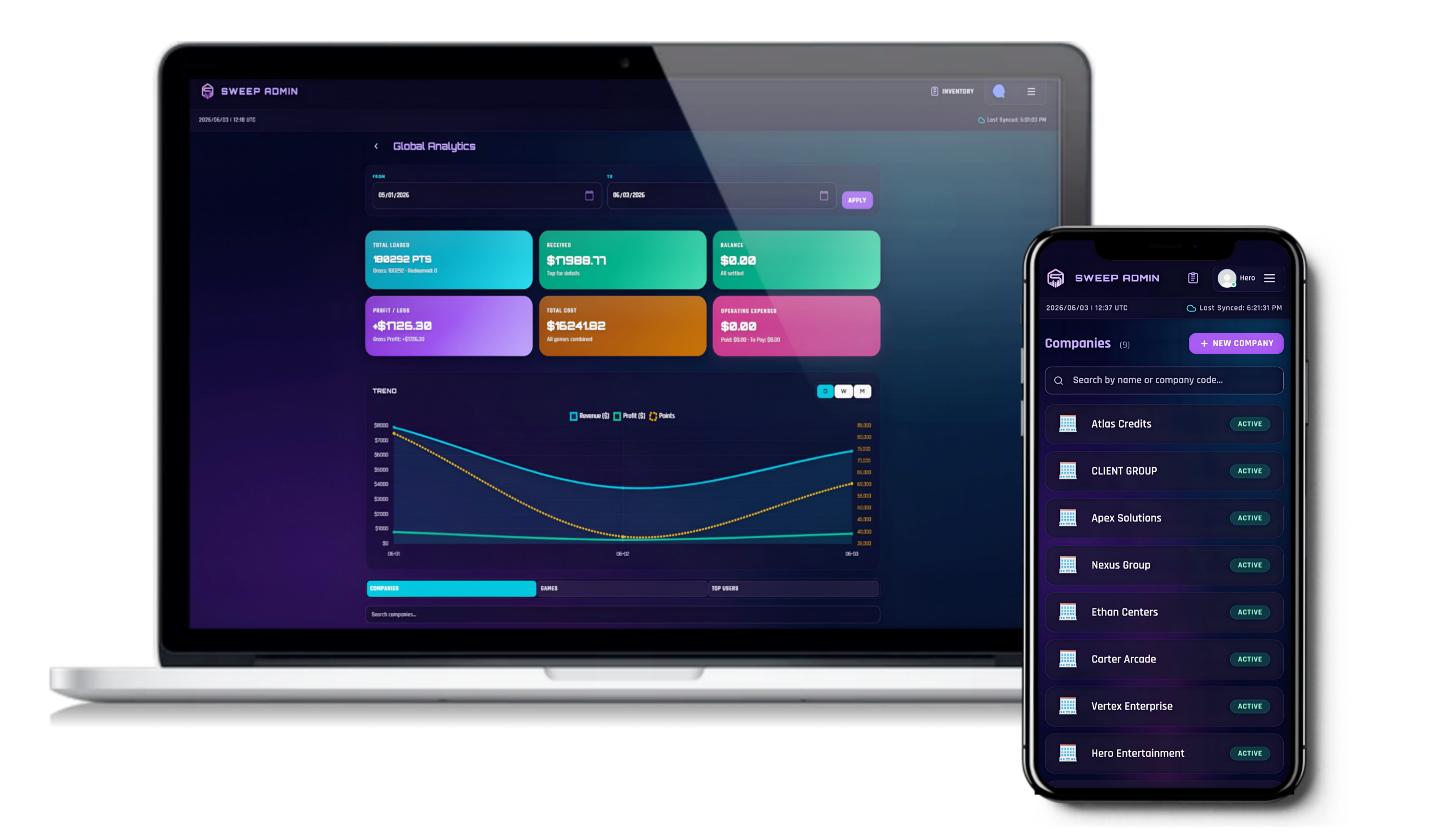
Each company has its own Analytics tab for that company's data alone. Global Analytics (accessible from the menu) aggregates data across all companies into one dashboard. All cards are tappable: tapping drills into the detail behind that number. Profit and loss in both views are calculated by comparing the cost rate against the sell rate set for each game per company.
Company Analytics: Summary Cards
TOTAL LOADED: total points loaded across all bills for this company. Tap to see a per-game breakdown.
TOTAL REDEEMED: total points redeemed (billed out). Tap for breakdown.
PAYMENTS RECEIVED: total cash received. Tap to open the full payment ledger with each payment, credit applied, and partial entries.
OUTSTANDING / CREDIT BALANCE: switches label dynamically based on whether the company owes you money or holds a credit. Tap for the full balance ledger.
PROFIT / LOSS: net profit from this company (sell price minus cost price). Shows total cost as a subtitle. Tap for a per-bill breakdown.
GENERATE REPORT: shortcut to export a CSV report scoped to this company.
Global Analytics: Summary Cards
TOTAL LOADED (pts): total points across all companies. Tap for a ranked per-company breakdown.
RECEIVED ($): total cash received across all companies. Tap for per-company payment detail.
OUTSTANDING / CREDIT / BALANCE DUE: net balance aggregated across all companies.
PROFIT / LOSS: gross profit with cost shown in subtitle. Tap for per-company P/L breakdown.
TOTAL COST: total cost of points across all games and companies combined.
OPERATING EXPENSES: sum of all expenses including salary and manual entries, with paid vs. unpaid shown in subtitle. Owner only.
Below the cards, Global Analytics also shows Top Companies ranked by revenue and Top Games ranked by points and revenue.
Charts
Trend Chart (Line): revenue over time, filterable by Daily, Weekly, or Monthly aggregation. Shows whether revenue is growing, declining, or flat.
Bar Chart: billing amounts grouped by period, good for comparing performance across weeks or months.
Pie Chart: revenue breakdown by game, showing which games contribute the most to a company's billing.
Generate Report
CSV exports for billing, profit/loss, and company summaries
Generate Report exports your data as CSV files, ready to open in Excel, Google Sheets, or hand off to your accountant. Reports are filterable by date range and can be scoped to all companies or a single one.
Billing Report
Every bill line item: company, game, username, account level, date, points, dollar amount, payment status, amount received, and balance due.
Company Summary
Per-company totals: points loaded, points redeemed, total billed, cash received, balance due, and current credit balance.
Profit / Loss Report
Per-line-item detail comparing cost rate vs sell rate: cost price, sell price, and profit or loss per transaction. Useful for auditing margins.
Operating Expenses
Salary costs plus manual expenses with the Gross Profit formula shown inline, ideal for period-end financial review.
Invoice Settings
Your branding on every printed invoice
Customize what appears on every invoice SweepAdmin generates. Changes reflect immediately the next time you print or save an invoice for any company.
Branding Name
Set a custom business name shown as the header on all invoices instead of your Google account display name.
Contact Info
Add a phone number, email address, or business address shown below your branding name on every invoice.
Logo / Profile Photo
Upload a custom logo saved to your connected Google Drive, or use your Google account profile photo. A default icon is used if neither is set.
Footer Note
Add a custom text note at the bottom of every invoice: payment terms, a thank-you message, bank details, or any other information for your clients.
What a Printed Invoice Includes
Logo, branding name, and contact info in the top-left header
"INVOICE" label, Reference Number (Ref. No#), and date in the top-right
Bill To: company name and category
Period: the date range of bills included in this invoice
Summary box: Subtotal, Extra Fee (if applicable), Total Billed, Cash Received, Balance Due or Paid in Full, Remaining Credit (if any)
Prior Outstanding balance for single-bill invoices where the company has other unpaid bills
Footer note if set
"Generated by sweepadmin.com" with the date at the bottom
Reorder & Customize
Put the menu buttons and authenticator cards in the order you use them
Two parts of SweepAdmin can be rearranged by hand: the feature buttons in the ☰ menu and the cards on the Authenticator Codes page. Both use the same idea as rearranging apps on a phone's home screen: hold to start, items wiggle, drag them where you want, then finish. Reordering only changes what you see. It never changes companies, games, bills, inventory, or any other data.
Rearrange the ☰ menu
Open the ☰ menu and press and hold any feature button for about half a second.
The buttons wiggle and each one shows a small round handle in its top-right corner. While they wiggle, tapping a button does not open it.
Drag a button up or down. The others slide out of the way to show where it will land.
Finish by tapping an empty part of the menu, pressing Esc, or closing the menu. The new order is saved only if something moved.
Authenticator Codes
Cash Flow Management
Manage Cashiers
Data Edit Log
Advanced Settings
Wiggling buttons can move. Buttons that stay still, like Advanced Settings, keep their place.
Buttons you can move
Authenticator Codes, Cash Flow Management, Manage Cashiers (My Employment for cashiers), Bulk Sheets on phones, Data Edit Log, Generate Report, Invoice Settings, Quick Calculator, Export Data, Import Data, and Security. Authenticator Codes starts at the top by default. You only see the buttons your account has access to.
Always in the same place
Your profile, Subscription, Quick Summary, Analytics, the My Shift card, Advanced Settings, and Sign Out. These never wiggle or move, so they are always easy to find.
Rearrange authenticator cards
On a computer
Click Reorder at the top of the Authenticator Codes page, or press and hold any card. Drag cards into place, then click Done. Searching is paused while you reorder so every card is visible.
On a phone
A quick tap copies a code, so press and hold a card to start reordering instead. A bar appears at the bottom saying Reorder mode; drag the cards, then tap Done on that bar.
Where your order is saved
Your arrangement is saved for your account on this device and browser. Each person sees their own order, and a different phone or computer starts with the default order until you arrange it there too. Clearing your browser's site data resets it to the default. Nothing about your business data changes, and your order is never shown to other users.
Data, Security & Admin Tools
Audit log, import/export, data management, and action PIN
Data Edit Log
Audit trail of every cashier action: creates, edits, deletes, and shift events, logged with name, timestamp, table affected, and a summary. Filterable by date and action type. Visible to owner only. Data is retained for 3 days then automatically pruned.
Export Data
Downloads a complete JSON snapshot: all companies, assigned games, master games, bills, cash flow data, and invoice settings. Use as a backup or to migrate to a new account.
Import Data
Restore from a previously exported JSON file. Companies are matched by name and merged; bills are deduplicated by reference number. Safe to run multiple times. Useful for migrating between accounts or restoring after accidental deletion.
Security: Action PIN
Set a PIN required before any destructive operation: clearing bills by date range, deleting all data, or replacing or removing an authenticator key. If no PIN is set, a confirmation dialog is used instead. The PIN can be changed or removed at any time.
Clear Bills by Date Range
Permanently deletes all bills within a date range you specify. Related Cash Flow transactions are also removed. PIN-protected and irreversible.
Delete All Data
Wipes everything: all companies, games, bills, cash flow data, and settings. Requires two confirmation dialogs plus your action PIN. Irreversible.
Subscription
Your plan, access status, and renewal
The Subscription panel is accessible from the hamburger menu. It shows your current plan name, expiry date, days remaining with a visual progress bar, and your current access status: Active, Expiring Soon (3 days or fewer), Expired, or Unlimited.
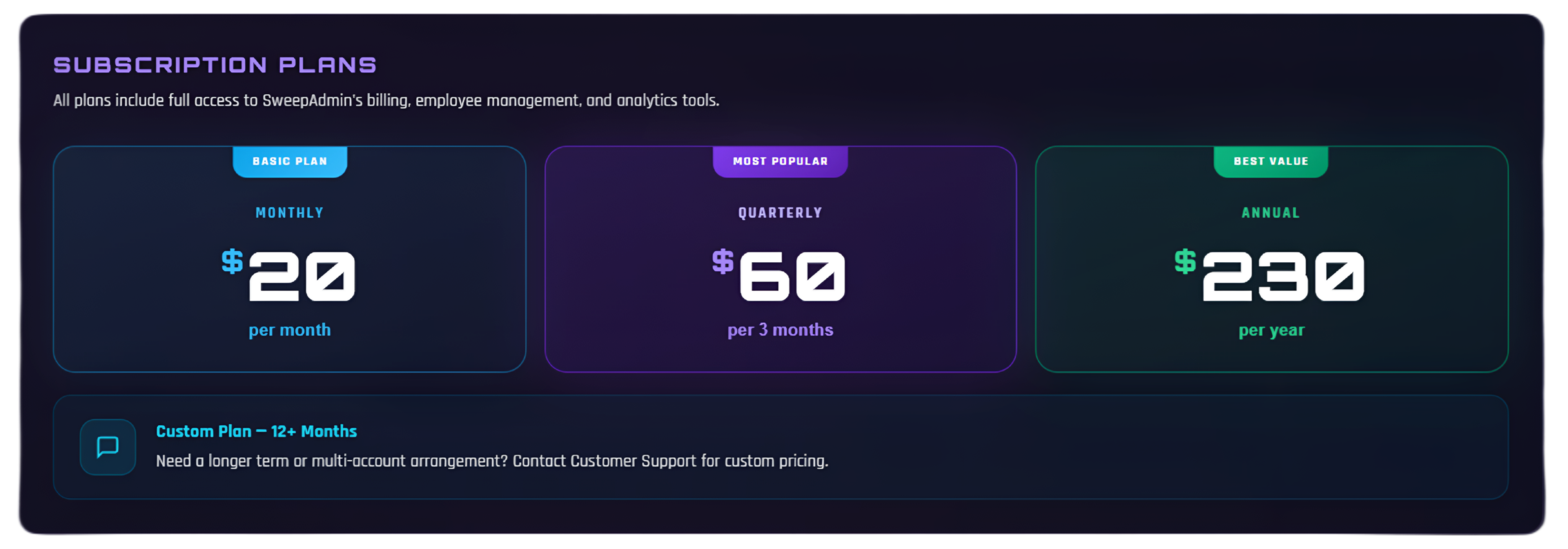
SweepAdmin access is managed through the activation process. To renew, complete the required payment and follow the steps on the activation page. Accounts never activated show a pending message. Monthly and Annual plan options are listed in the subscription panel.
Ready to Run Your Business Smarter?
Billing, analytics, cash flow, and team management, all in one place at sweepadmin.com